

Use the Settings tab to open the global quote settings. Changes to these settings apply to all quotes created from that point forward.
General Listing Settings

In the “Number Range” section, define a custom starting number for the quote number. You also have the option to customize the quote number template according to your preferences.
In the “Customization” section, you can set the currency, default template, language, and tax jurisdiction for your offers.
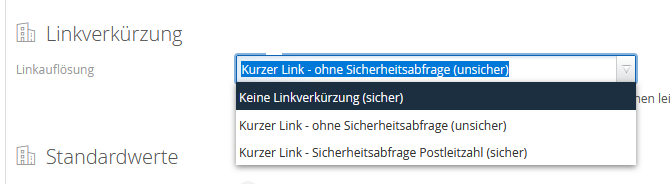
Link shortening allows you to shorten the secure offer links for your customers. If you shorten a link without a security prompt, the link could potentially be guessed by a machine, which could result in unauthorized access to the offer. (Low probability)
When using link shortening with a security prompt, the recipient’s ZIP code is requested. Your customer must therefore enter their ZIP code to open the offer.
The “Default Values” settings section allows you to specify whether items in your quote should generally be marked as “Optional,” “With Data Sheet,” “Already Selected,” and/or have an editable quantity.
Using “Track Changes,” you can control the visibility of your changes to your end customer, who can view them in the activity history.
Create Templates for Quotes

In the “Quote Templates” section, you can create multiple templates for headers and footers. These templates can be selected in the local settings of a quote and applied directly.
Changes made to a template take effect after editing and are applied to future quotes. Changes to the template are not applied to quotes that have already been created, sent, or edited.
Set Up Email Delivery for Quotes

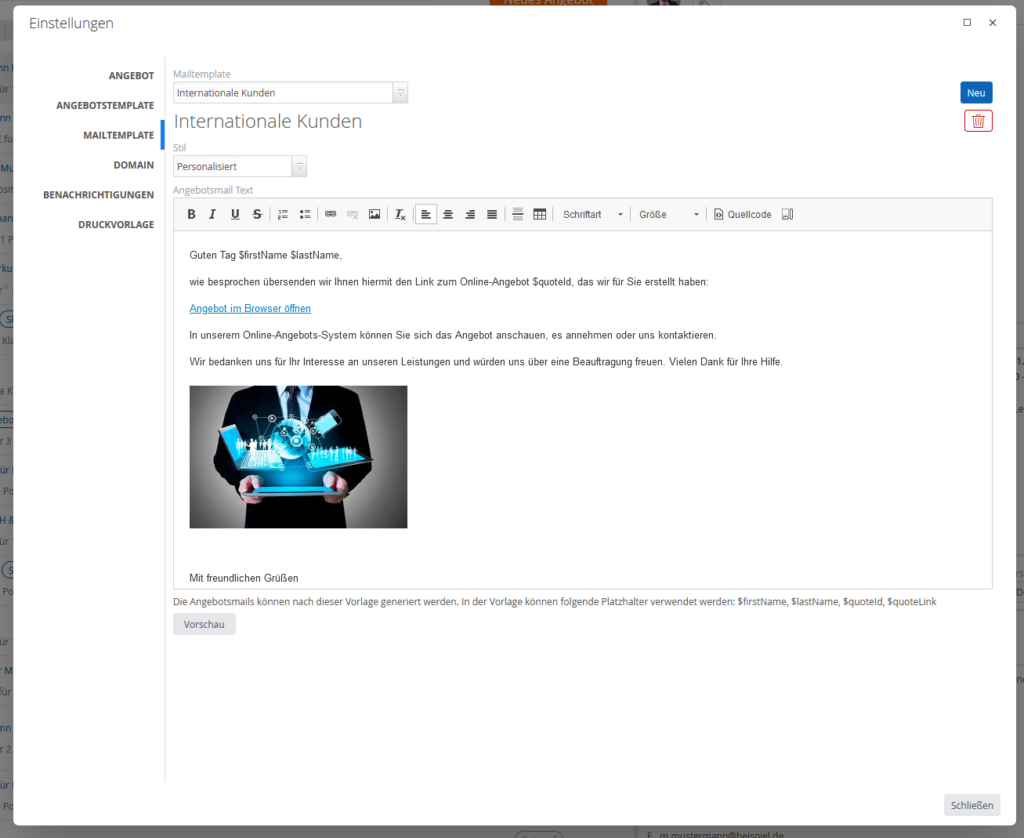
In the “Mail Template” section, you can create multiple templates for the emails used to send your quotes on Iscope. You can select these templates when sending a quote, apply them directly, and customize them further for each email.
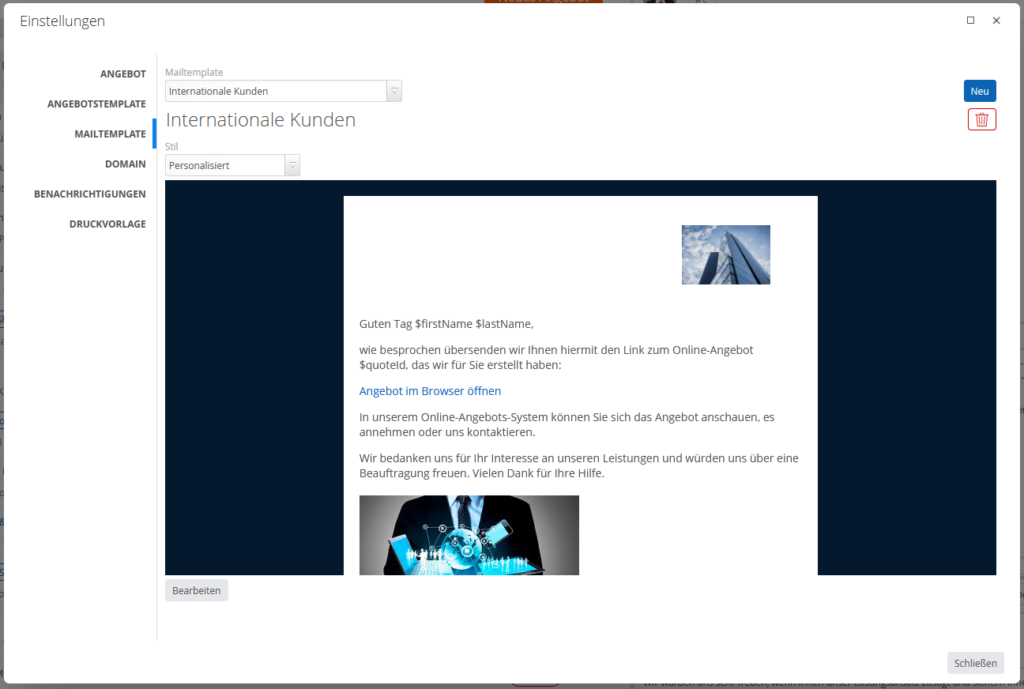
There are two default templates available to you that cannot be edited: the “Simple Quote Email” template and the “Personalized Quote Email” template. The only difference between these templates is that the “personalized” template displays your logo in the email.
If you decide to create a new template, it will be created for you. For each template, you can assign a name and select the “Personalized” or “Simple” style (with or without a logo). You can then edit the text and insert placeholders such as first name ($firstName), last name ($lastName), the quote number ($quoteId), and the quote link ($quoteLink). You can also add images. You can preview the result. The template is saved automatically.
Print Template

In the “Print Template” section, set up a print template for your automatically generated quote PDF files. This ensures that the customer receives a quote in your format and with your design.